> ## Documentation Index
> Fetch the complete documentation index at: https://platform.perso.ai/docs/llms.txt
> Use this file to discover all available pages before exploring further.
# Overview
Perso Interactive Web SDK enables developers to build real-time, voice-enabled AI avatars in the browser.
\
**The Perso Interactive Web SDK is a browser-first SDK designed for creating interactive AI avatars and chat experiences with low-latency audio, video, and text streaming**.
It handles session creation, real-time WebRTC connections, and event-driven chat state updates while allowing developers to configure STT type, TTS type, LLM type, background image, prompts, and documents.
> ## Demo App Installation
>
> Learn how to install Perso Interactive Web SDK Demo App.
>
> [Install Perso Interactive Web SDK Demo App →](https://perso-platform.readme.io/docs/web-sdk)
> ## **Perso Interactive Web SDK Repository**
>
> Learn how to install and fully configure Perso Interactive Web SDK.
>
> [Explore Perso Interactive Web SDK Repository→](https://github.com/perso-ai/perso-interactive-sdk-web)
## Key Features
Interact with AI avatars with real-time audio, video, and text streaming.
A configurable STT → LLM → TTS pipeline enabling natural, low-latency AI conversations in the browser.
Dynamically select models, prompts, documents, backgrounds, tools, and MCP servers per session.
Runs entirely in modern browsers using WebRTC, with flexible server-side or client-side session creation.
# **How It Works**
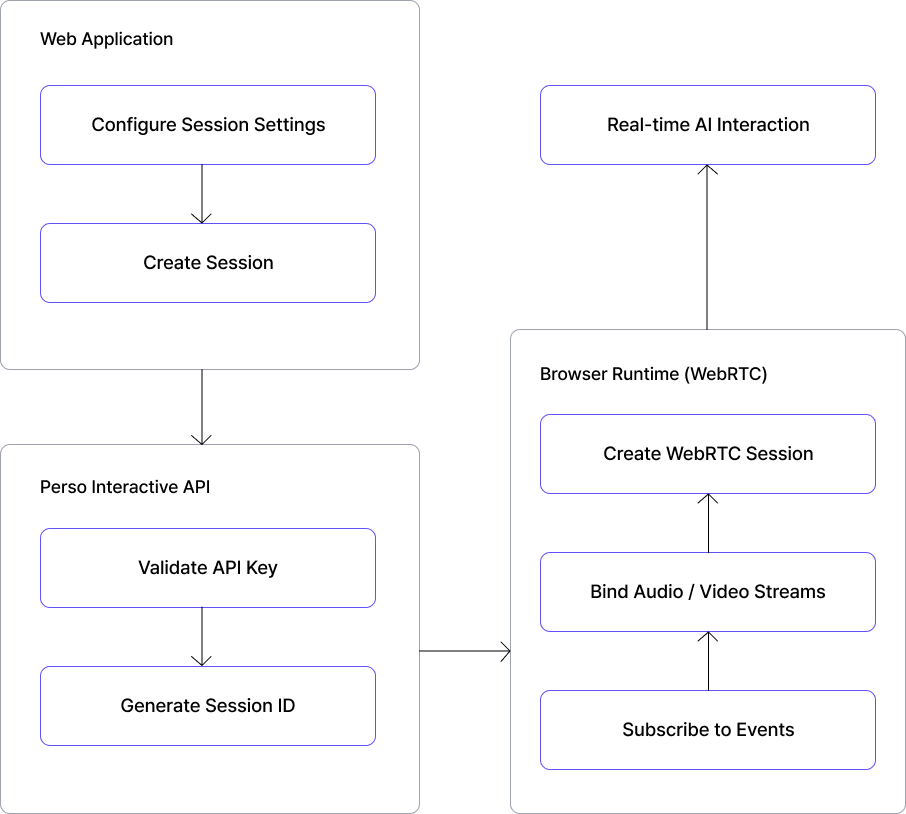
The Perso Interactive Web SDK connects your web application to the Perso AI Platform through a real-time WebRTC session.
Integration starts by fetching available session settings (STT type, TTS type, LLM type, background image, prompts, and documents) creating a session ID using your API key, and then establishing a WebRTC connection in the browser.
Once connected, your application subscribes to chat states and events to render messages, control voice input/output, and handle tool calls in real time.